Hit areas
Recently, Raphael Salaja published an article about the Laws of UX. One of the first principles mentioned was Fitt's Law.
The central idea of Fitts’s Law is simple:
The time required to move to a target depends on how far away the target is and how large it is.
In simpler terms:
- Bigger targets are easier to click
- Closer targets are faster to reach
One practical application of this idea is expanding the clickable area of an element without changing its visible size. This technique improves accessibility and reduces user frustration, especially on smaller screens where precise cursor movement or finger placement can be difficult.
How Google Chrome handles hit areas
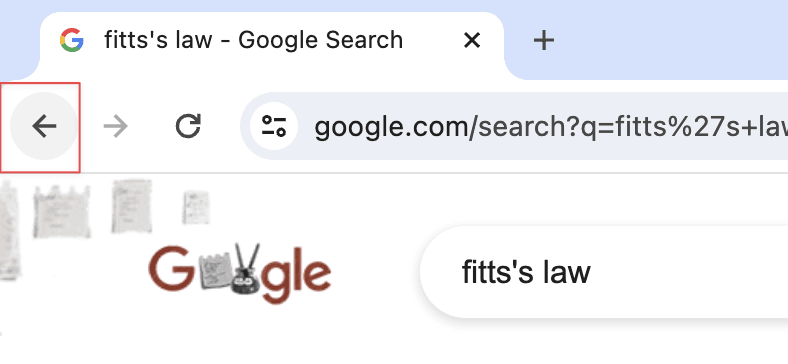
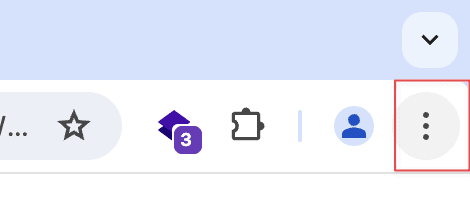
Images from JohnPhamous
If you look at the highlighted sections in the images (marked with the red borders), you'll notice something interesting: Google Chrome increases the clickable area of certain buttons.
For example:
- the back navigation arrow
- the profile button
Even though the icons themselves appear small, the actual hit area around them is larger, making them easier to click.
Some people might think this is over-engineering, but it really isn't. It's a small implementation detail that significantly improves usability.
Good UX often comes from tiny invisible improvements like this.
Implementing hit areas in your UI
You can apply the same concept to your own interfaces using CSS pseudo-elements such as:
::before::after
In this example we'll use ::after together with Tailwind CSS.
Loading demo...
If you look closely at the demo, you'll notice that there is no border-radius applied to the expanded hit area.
That is intentional.
Applying a border-radius slightly reduces the clickable area. In most cases, keeping the expanded hit box rectangular provides the largest possible target area.
Here is the code used in the example:
<button className="relative bg-primary text-primary-foreground [a]:hover:bg-primary/80 h-9 gap-1.5 px-4 after:absolute after:-inset-2 after:content-[''] [&:hover::after]:border-2 [&:hover::after]:border-blue-500 [&:hover::after]:bg-blue-500/10">
  Hover to hit area center
</button>
The important part is:
after:absolute
after:-inset-2
after:content-['']
This creates an invisible layer around the button, effectively expanding the clickable region.
Hit area placements
Hit areas don't always need to expand equally in every direction.
Depending on where a button sits in the layout, it can make more sense to expand the hit area in specific directions.
Common placements include:
- center
- top
- right
- bottom
- left
- top-right
- top-left
- bottom-right
- bottom-left
For example:
- Chrome uses top-right expansion for the profile avatar
- Chrome uses top-left expansion for the back navigation button
In the earlier example, we expanded the hit area equally from the center.
Choosing the correct direction depends on the element's position in the layout.
For instance:
- Buttons inside layouts can expand equally
- Buttons placed near the edges of the screen should often extend their hit areas toward that edge. Users frequently move their cursor quickly toward screen boundaries because the edge naturally stops the pointer. Expanding the hit area in that direction makes it much easier for them to hit the target without needing precise cursor control.
And no — you don't need to write a function to decide this. It's usually a simple design decision based on layout.
Let's see all of them in action.
Loading demo...
Adding hit areas to your shadcn button component
Manually adding a ::after pseudo-element to every button in your project is something you might easily forget, especially after stepping away from the codebase for a while.
Instead of repeating this logic everywhere, you can integrate hit areas directly into your shadcn/ui button component using class-variance-authority (cva) variants. This makes the feature reusable and consistent across your entire application.
1. Add the hit variant
First, create a hit variant that controls how large the hit area should be.
hit: {
  default: "",
  small: "after:absolute after:inset-[-4px] after:content-['']",
  medium: "after:absolute after:inset-[-8px] after:content-['']",
  large: "after:absolute after:inset-[-12px] after:content-['']",
  xlarge: "after:absolute after:inset-[-16px] after:content-['']",
},
The hit variant determines how far the invisible clickable area expands beyond the visible button.
2. Add the hitdir variant
Next, add a hitdir variant that controls where the hit area expands.
hitdir: {
  center: "",
  top: "after:bottom-0 after:inset-x-0",
  right: "after:left-0 after:inset-y-0",
  bottom: "after:top-0 after:inset-x-0",
  left: "after:right-0 after:inset-y-0",
  "top-right": "after:bottom-0 after:left-0",
  "top-left": "after:bottom-0 after:right-0",
  "bottom-right": "after:top-0 after:left-0",
  "bottom-left": "after:top-0 after:right-0",
},
The hitdir variant controls which direction the hit area should expand. This is useful when buttons are placed near screen edges where expanding in a specific direction improves usability.
3. Add a debug mode (optional)
While building, it can be helpful to visualize the hit area. You can add a showHitArea variant that reveals the expanded region on hover.
showHitArea: {
  false: "",
  true: "[&:hover::after]:border-2 [&:hover::after]:border-blue-500 [&:hover::after]:bg-blue-500/10",
},
This is purely for debugging and can be disabled in production.
4. Update your default variants
Now add the new variants to your defaultVariants.
defaultVariants: {
  variant: "default",
  size: "default",
  hit: "default",
  hitdir: "center",
  showHitArea: false,
},
5. Update the Button props
Finally, update your Button component props so these variants can be configured when the component is used.
function Button({
  className,
  variant = "default",
  size = "default",
  hit = "medium",
  hitdir = "center",
  showHitArea = false,
  ...props
}: ButtonPrimitive.Props & VariantProps<typeof buttonVariants>) {
  return (
    <ButtonPrimitive
      data-slot="button"
      className={cn(
        buttonVariants({ variant, size, hit, hitdir, showHitArea, className }),
      )}
      {...props}
    />
  );
}
Now you can easily control hit areas when using your button:
<Button hit="large" hitdir="top-right">
  Profile
</Button>
This approach ensures consistent hit areas across your entire UI without repeating pseudo-element logic in every component.
If you made it this far, I'd love to hear your thoughts. Let me know if this is something you'd implement in your next project on X(Twitter)